The program features a clean, easy-to-use, and powerful user interface designed to make unit conversion fast, intuitive, and reliable.
The main program window is shown below.
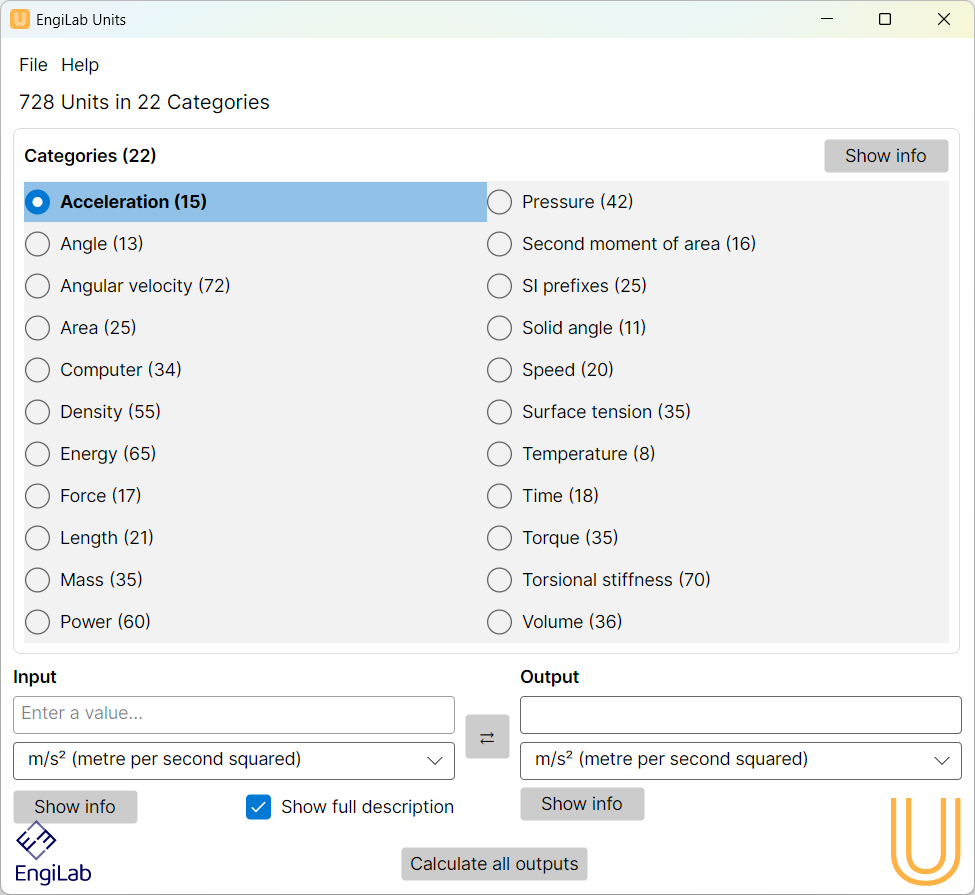
1. Categories Panel
On the left side of the window, the user will find the list of 22 unit categories, such as Acceleration, Force, Energy, Pressure, Torque, and many others. To begin a conversion, the user must first select the appropriate category. For example, to convert newtons to pounds-force, the user selects the Force category.
When a category is selected:
•The Input Unit dropdown (left side) is populated with all units belonging to that category.
•The Output Unit dropdown (right side) is populated with the same units.
This ensures that all conversions are meaningful and internally consistent.
2. Input Section
The Input panel allows the user to define the unit and the quantity to be converted.
It includes:
•A text box where the user enters the numerical value of the input quantity. As the user types, the program instantly computes the result in the selected output unit. This real-time calculation makes the workflow fast and efficient.
•A dropdown menu where the user chooses the input unit within the selected category.
•A Show info button that opens the corresponding Wikipedia page (in the system’s default browser) for additional information about the selected unit.
•A Show full description checkbox that displays the complete name of each unit in the dropdown menus (for both input and output units).
3. Output Section
The Output panel mirrors the Input panel and includes:
•A read-only text box showing the converted value. This value updates automatically as the user types or changes units.
•A dropdown menu for selecting the output unit.
•A Show info button for opening the relevant Wikipedia page for the output unit.
4. Swap Button
Between the Input and Output panels, there is a swap button (↔). When pressed, the program immediately exchanges:
•The input and output units
•The numerical values
This allows the user to invert a conversion with a single click, i.e. make the input output and vice versa.
5. Calculate All Outputs Button
The Calculate all outputs button performs a broader calculation and converts the input quantity to all units in the selected category. This feature is explained in detail in another section of the help file, but it is worth noting that this button provides a comprehensive view of the value across the entire category.
Decimal Input Rules
For numerical input, the program accepts only the period "." as a decimal separator.
•The comma "," cannot be used to enter decimals.
•If the user types a comma, then a message "Input values must be numeric" will appear in the output text box.
In this help file, the comma "," is used only as a thousands separator to improve readability.